

📱 Data Migration from Old Domain
When a website domain becomes unavailable, you can extract locally stored IndexedDB data from the Android APP and import it to a new site.0️⃣ Prerequisites
Computer
Install adb
- Windows
- macOS
- Linux
- Download SDK Platform Tools
- Extract to
C:\platform-tools - Add to system PATH (see detailed steps below)
Windows: Configure Environment Variables
1
Open Run Dialog
Press 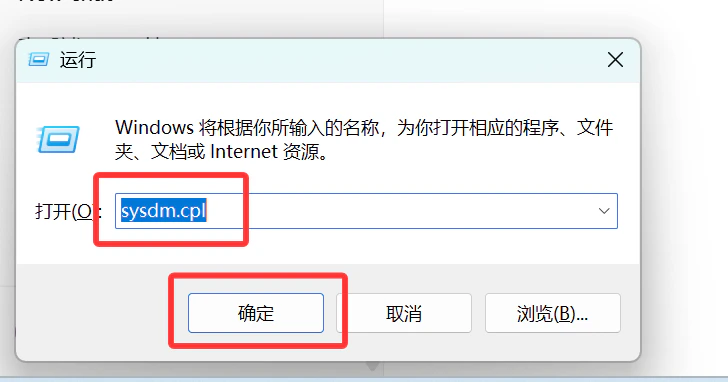
Win + R, type sysdm.cpl, click OK2
Open System Properties
Select the “Advanced” tab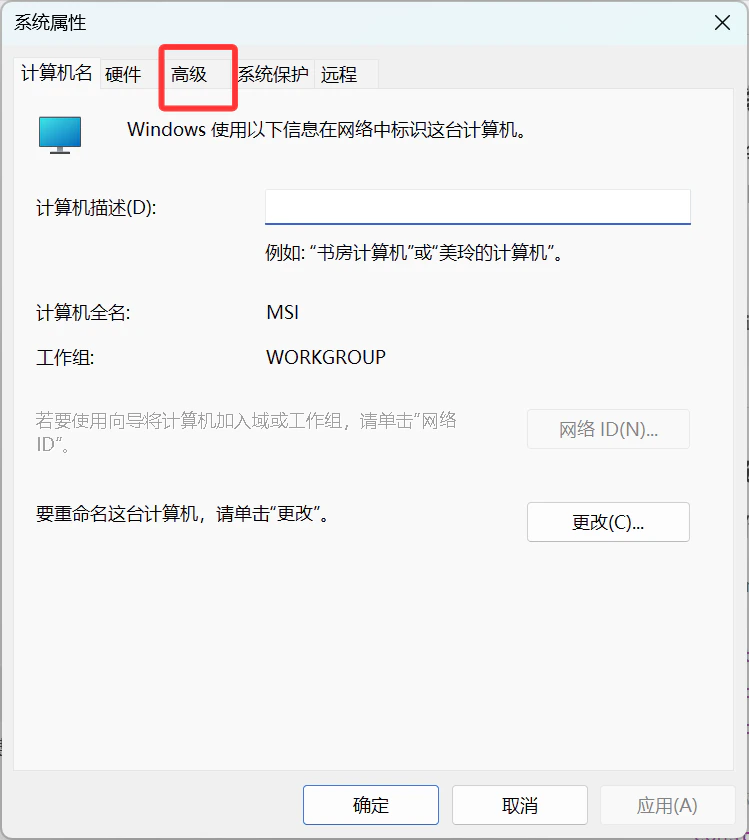
3
Click 'Environment Variables'
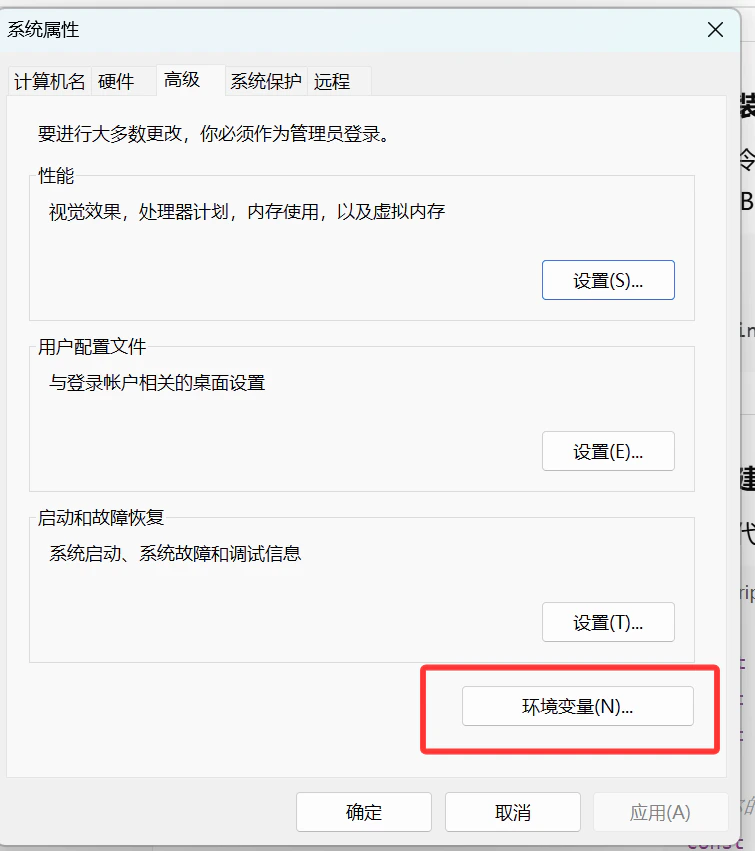
4
Edit Path Variable
Find 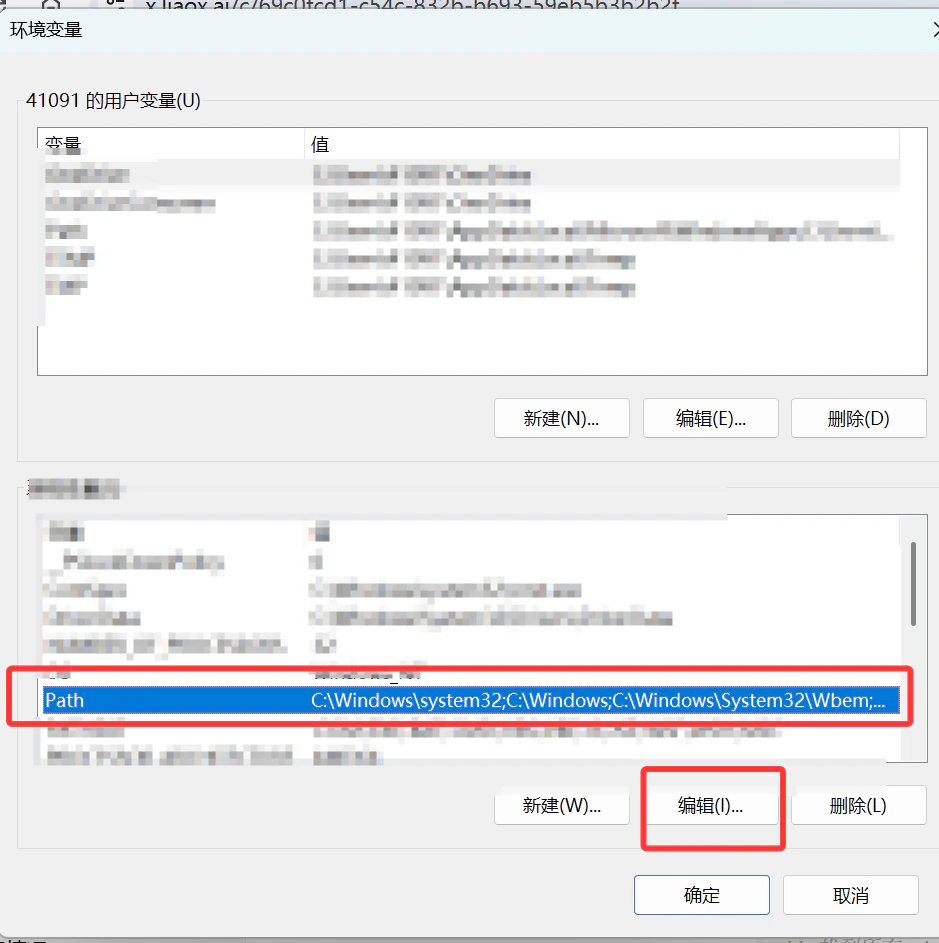
Path in “System variables”, click “Edit”5
Add adb Path
Click “New”, enter 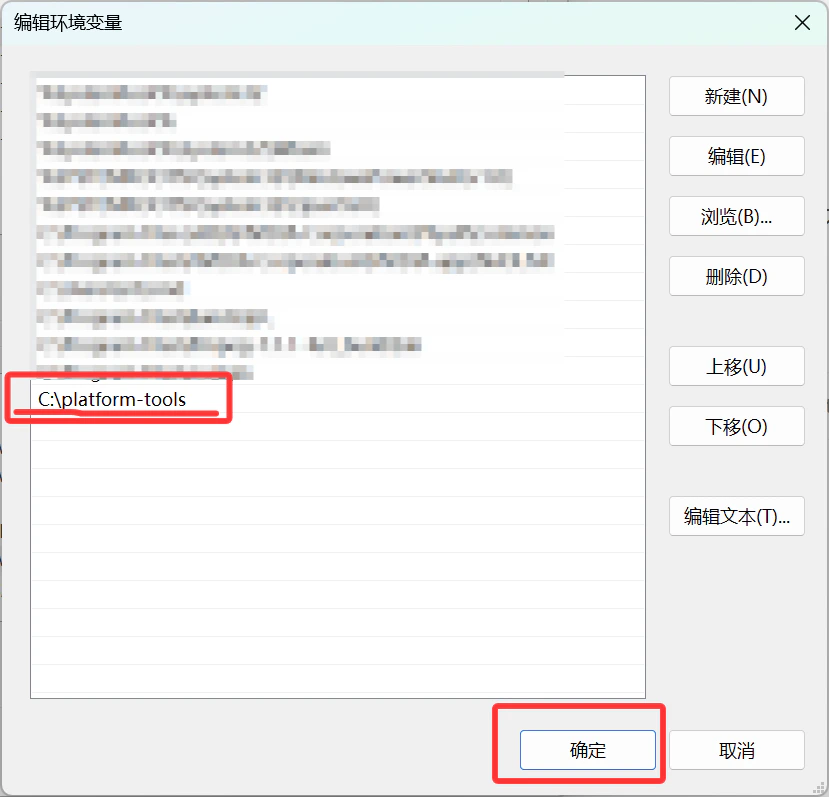
C:\platform-tools, click OKPhone
Enable Developer Options and USB Debugging
- Go to “Settings” → “About Phone”
- Tap “Build Number” 7 times → Become a developer
- Go back to “Settings” → “Developer Options” → Enable “USB Debugging”
- Connect phone to computer with USB cable
1️⃣ Check adb Connection
Verify adb Installation
Connect Phone
Shows
device means connection successful2️⃣ Find IndexedDB Data
Enter adb shell
Switch to App User
Navigate to IndexedDB Directory
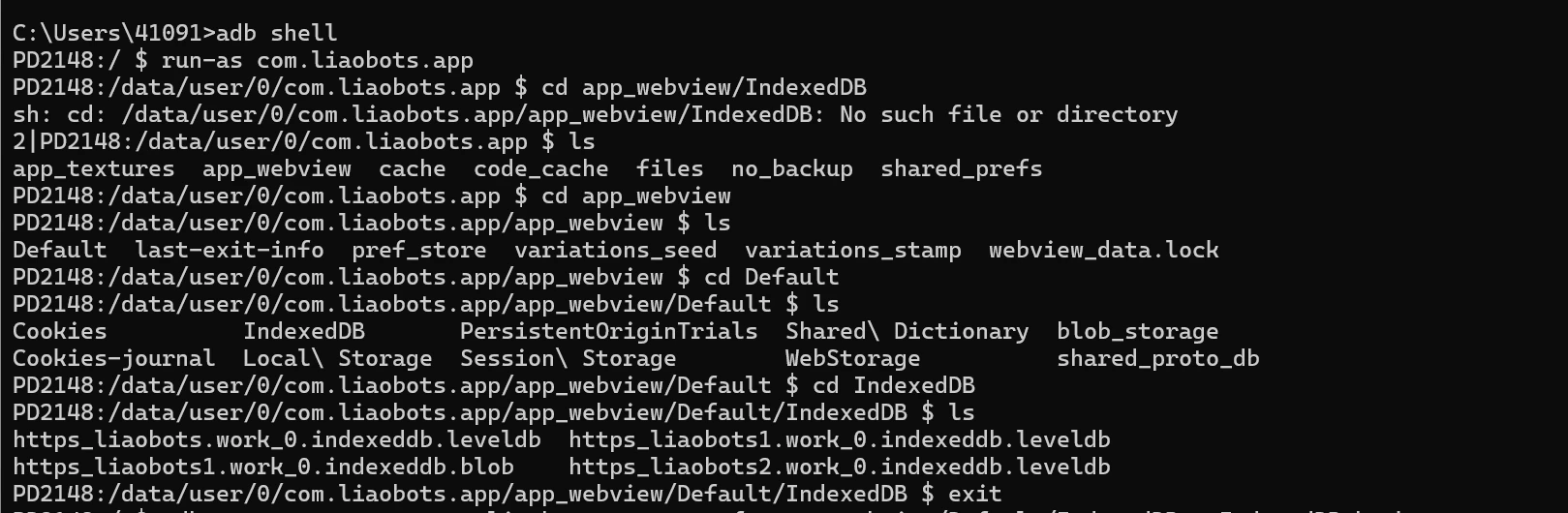
These
.indexeddb.leveldb folders contain your dataExit adb shell
3️⃣ Export Data to Computer
Run in computer terminal (not adb shell):
IndexedDB_backup.tar in current directory.
Extract File
- Windows
- macOS / Linux
4️⃣ Restore Data to New Site
- Visit the data recovery page on new site (e.g.,
/downloadjson) - Click “Select IndexedDB Folder”
- Select the extracted
.indexeddb.leveldbfolder
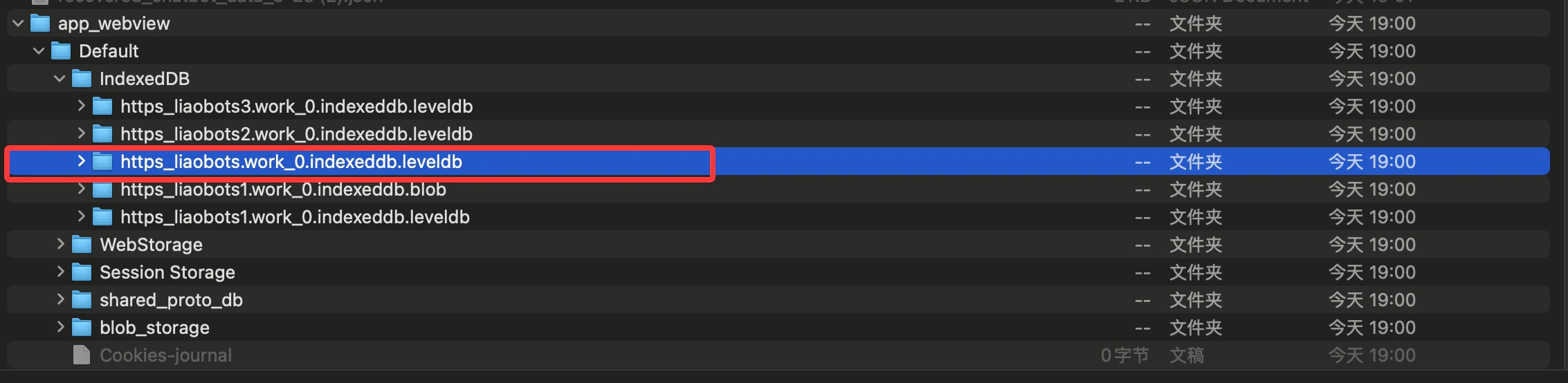
Select the https_xxx.indexeddb.leveldb folder
- Wait for parsing to complete, download JSON file
- Import JSON file to new site to restore data
❓ FAQ
run-as command shows 'Package not debuggable'
run-as command shows 'Package not debuggable'
The APK is a release version, not debug. You need a debug APK or root access.
Exported tar file is empty
Exported tar file is empty
Check if path is correct. Use
adb shell to verify files exist on phone first.tar command not found on Windows
tar command not found on Windows
Windows 10+ includes tar. If not available, use 7-Zip to extract.